
Fill in your Brand Kit
How to give WooMate the facts about your store, your tone of voice and your brand's look.
What it's for
The Brand Kit tells the AI who your store is. WooMate AI and Studio use it for texts and images.
What you need first
A connected store. Each store has its own Brand Kit.
How to fill it in
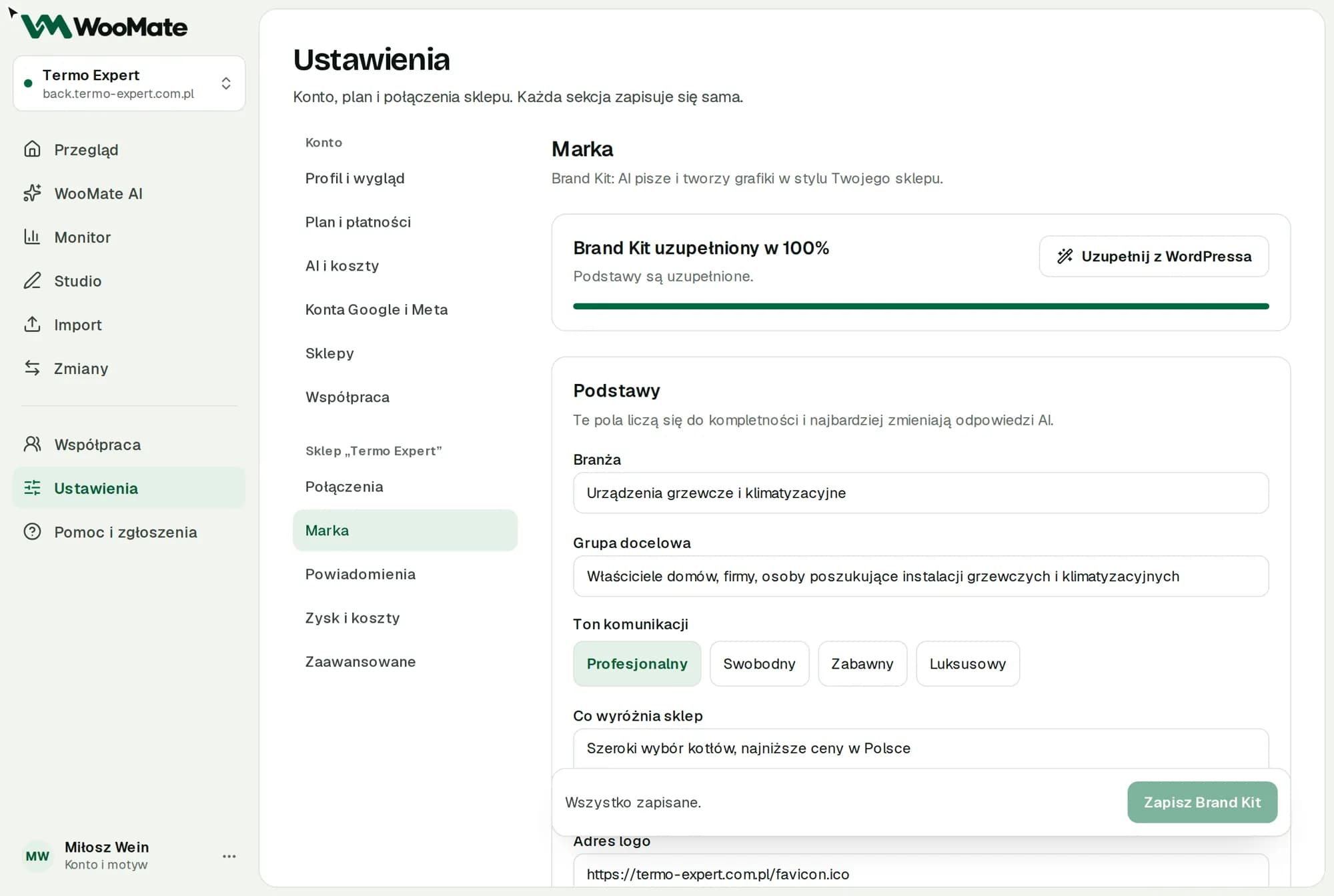
- Open the store settings and go to Brand.
- Click Fill in from WordPress. WooMate fills the empty fields with data from your store.
- Review the result and correct the Basics.
- Click Save Brand Kit.
Industry, target audience and a logo are enough to start. The Brand Kit …% complete bar shows your progress.
Fields
Basics:
- Industry
- Target audience
- Tone of voice: Professional, Casual, Playful or Luxury
- What makes the store stand out
- Logo URL: a public URL of a PNG, JPG or WebP file up to 10 MB, ideally a PNG with a transparent background
- Brand colors
More (the Show remaining fields button):
- Approved facts: what the AI may state, such as the year the store was founded
- What we do not promise: for example, next-day delivery
- Examples of approved texts
- Additional guidance
- Typeface
- Image style
- What to avoid in images
- Image engine and Image model
Limitations
- Without an Anthropic key, autofill only picks up the logo, colors and name. You'll enter the industry and target audience yourself.
- Unsaved changes are lost. The form warns you with the message You have unsaved changes.
Common problems
- WordPress has only a site icon, not a full logo. Paste the address of the full logo. Otherwise your images will show only the symbol.
- WordPress returned no new data. Fill in the fields manually.
Related articles
Can't find the answer? Write to hello@getwoomate.com or request free onboarding help.