
Library
How to browse content versions, compare them and go back to earlier ones.
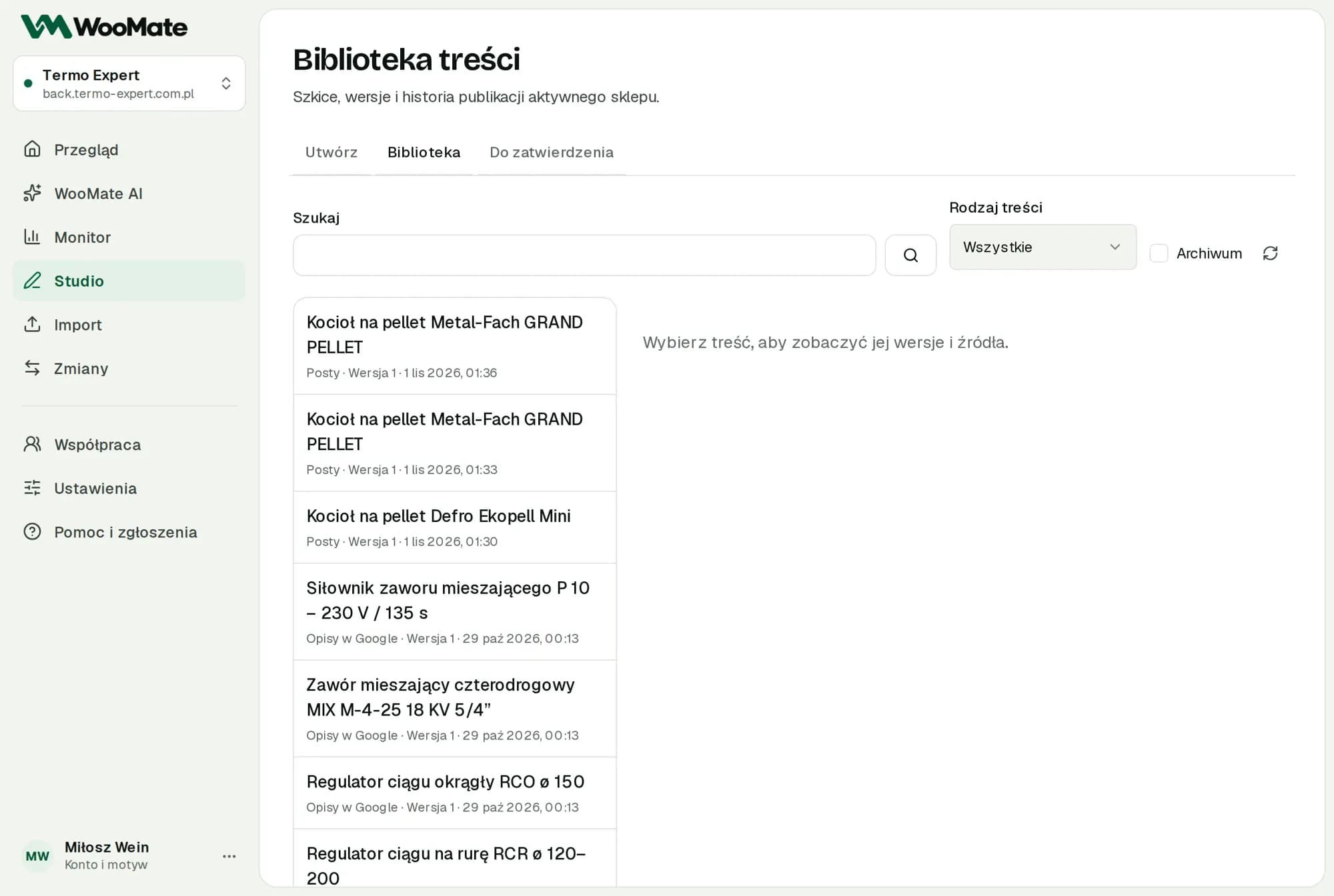
The Library keeps Studio results for the active store: content, sources, versions and publishing history.
What you need first
A connected store. Each store has its own Library.
Find content
- In Studio, go to Library.
- Use Search or the Content type filter: Product descriptions, Google descriptions, Articles, Posts.
- Pick an item from the list.
Edit and publish
- Click Open in editor.
- Edit the content and click Save new version.
- Click Show the change for approval.
- Approve the change.
Improve with AI creates a new version from your instruction. During the trial, it counts toward the Studio product limit.
Compare and restore
- Version comparison: added text is highlighted and removed text is struck through.
- Save this version as a new draft: brings back older content as a new version. Your store doesn't change until you publish it.
- Archive and Restore from archive: keep the list tidy.
Publishing results
The Latest publication in Search Console section compares equal periods of up to 28 days. Click Compare periods. The measurement needs at least 7 full days after publishing plus a 3-day buffer.
The result is an observation, not proof that the content made the difference. Ranking, demand, season and traffic to the whole site affect it too.
The Queries with Google potential section shows queries with at least 50 impressions in positions 1–20. The analysis covers the first 1,000 rows from Search Console.
Limits
- To publish, you approve the current version of the content.
- A version without saved sources needs a fact check.
Common problems
- The draft was changed or archived. Prepare a preview of the current version.
- Content changed while generating. The result was saved as a separate draft.
Related articles
Can't find the answer? Write to hello@getwoomate.com or request free onboarding help.