
Periods, comparisons and data sources
How to pick a period in Monitor and check where the numbers come from.
Monitor pulls sales from your store and results from your connected accounts. It doesn't use AI.
What you need first
A connected store. Ads and traffic need Google and Meta accounts, with the services selected in the store settings.
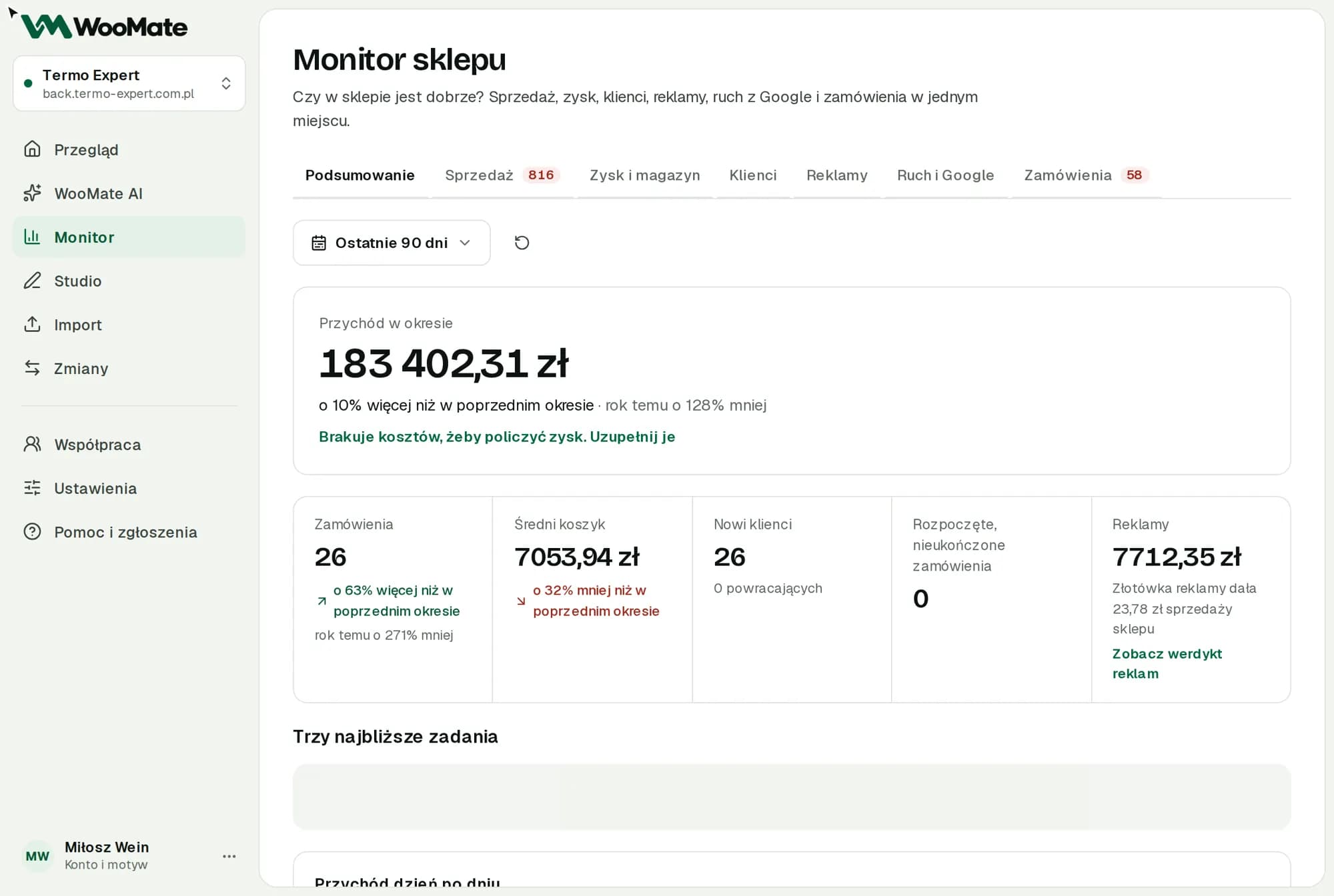
Pick a period
Click the period picker and choose:
- Today, This week, Last week, Last 7 days
- This month, Last month, Last 30 days
- Last 90 days, Last 12 months
- Custom range: enter From and To, then click Show this range
Comparisons
The numbers show the change from the previous period, and for revenue and orders also from the year before. When there's no data, you'll see the note “No previous period to compare”.
Data and sources
The Data and sources section shows the period, the report time zone, when the data was read and the status of each source: Working, Not selected, Not connected or Read error. If there's an error, you'll see when the last successful read happened.
Refresh data fetches the numbers again. On a phone, pull the screen down.
Limitations
Loading stops after 90 seconds. If that happens, pick a shorter period.
Related articles
Can't find the answer? Write to hello@getwoomate.com or request free onboarding help.