
Your first import, step by step
How to upload a CSV or Excel file, check the result and save products in your store.
WooMate Import saves products from a CSV or Excel (XLSX) file to WooCommerce. It shows you what will change first, and it changes your store only after you confirm.
What you need first
- A Pro, Agency or Pro Lifetime plan, or the free trial. Starter doesn't include Import.
- A connected store with keys that allow writing.
- A CSV or XLSX file up to 10 MB. The requirements are in Prepare a CSV or Excel file.
Choose a goal
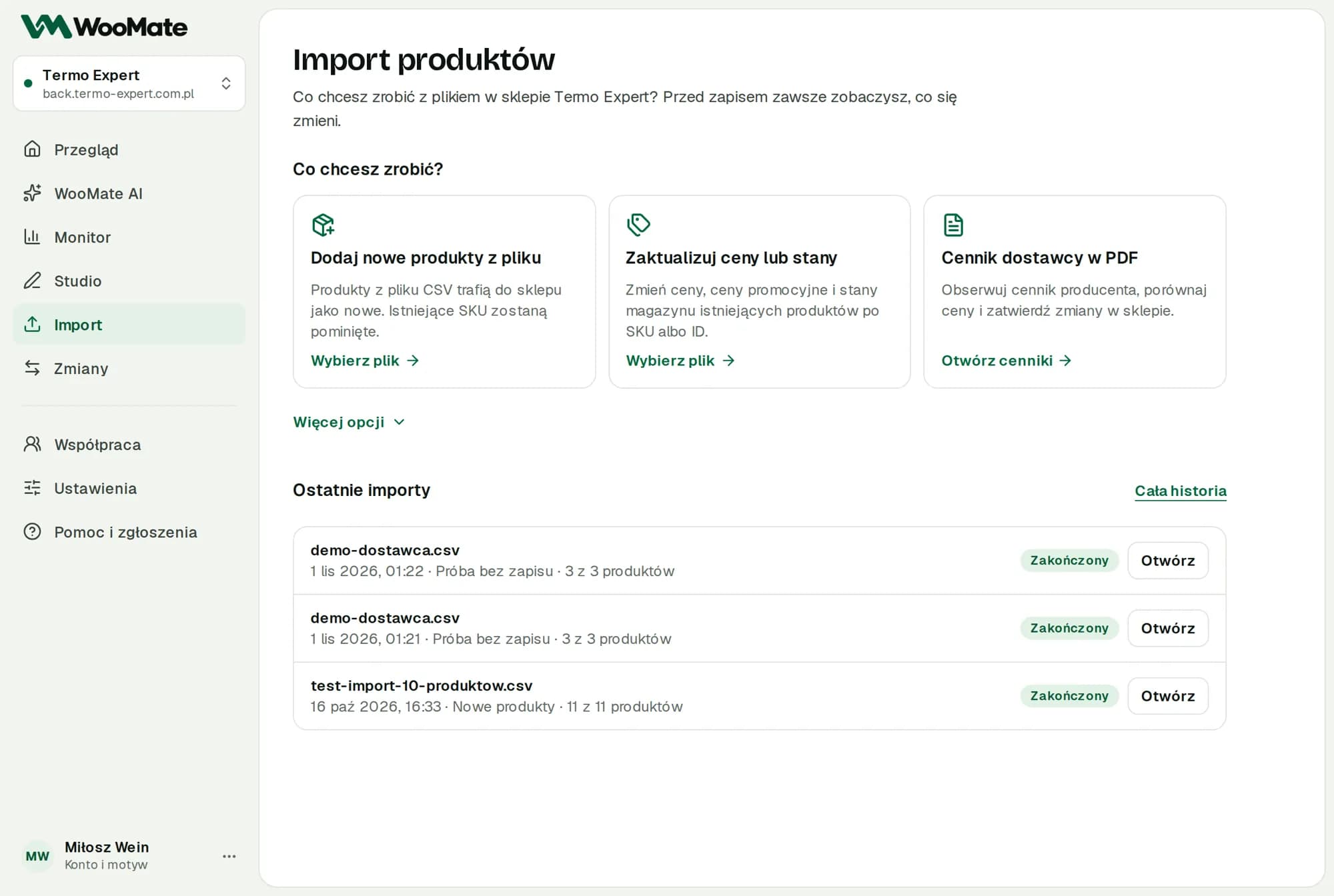
Pick a store in the top bar, go to Import and, under What do you want to do?, choose one goal:
| Goal | What it does | More |
|---|---|---|
| Add new products from a file | Creates new products. A product that's already in the store goes on the problem list | New products |
| Update prices or stock | Changes prices and stock by SKU or ID | Prices and stock |
| Wholesaler sync | Fetches a file from a URL or a Google Sheet on a schedule and prepares price and stock changes | Supplier feed sync |
| Supplier price list (PDF) | Watches a price list and suggests price changes | Supplier price lists |
You'll find the Add new and update existing goal under More options. It updates products found by SKU or ID and adds the missing ones. It's covered in Adding new products.
The steps below apply to the first three file-based goals. Sync and price lists have their own screens.
Go through three steps
The wizard has three steps: File, Check and Result.
- Upload a CSV or XLSX file. WooMate recognizes the columns and shows the first 5 rows of the file.
- Check Column matching. Fix it with Change matching if needed.
- Answer the variations question if a product comes in several sizes or colors.
- Click Check what changes. This starts a dry run.
- Read the What changes in the store screen: the Update, New and Skip counts and the before → after examples.
- Click the save button with the number of changes, for example Save 12 changes in the store.
- Follow the progress in the Result step. You can close the tab, because the import runs on the server.
When it finishes, you'll see how many products were added, changed and skipped, plus the Items list.
Limits
- Only one import runs at a time in a store.
- Import changes only the fields from matched columns.
- Up to 20 uploaded files per hour and up to 10,000 products in one import.
- The trial limit is 50 products. We count products, not rows in the file.
Common problems
You'll find the messages and their causes in Import issues.
Related articles
- Prepare a CSV or Excel file
- Dry run
- Background work, stopping and resuming
- Error report, history and undoing an import
Can't find the answer? Write to hello@getwoomate.com or request free onboarding help.