
Single product description
How to prepare a product description in Studio and send it to your store.
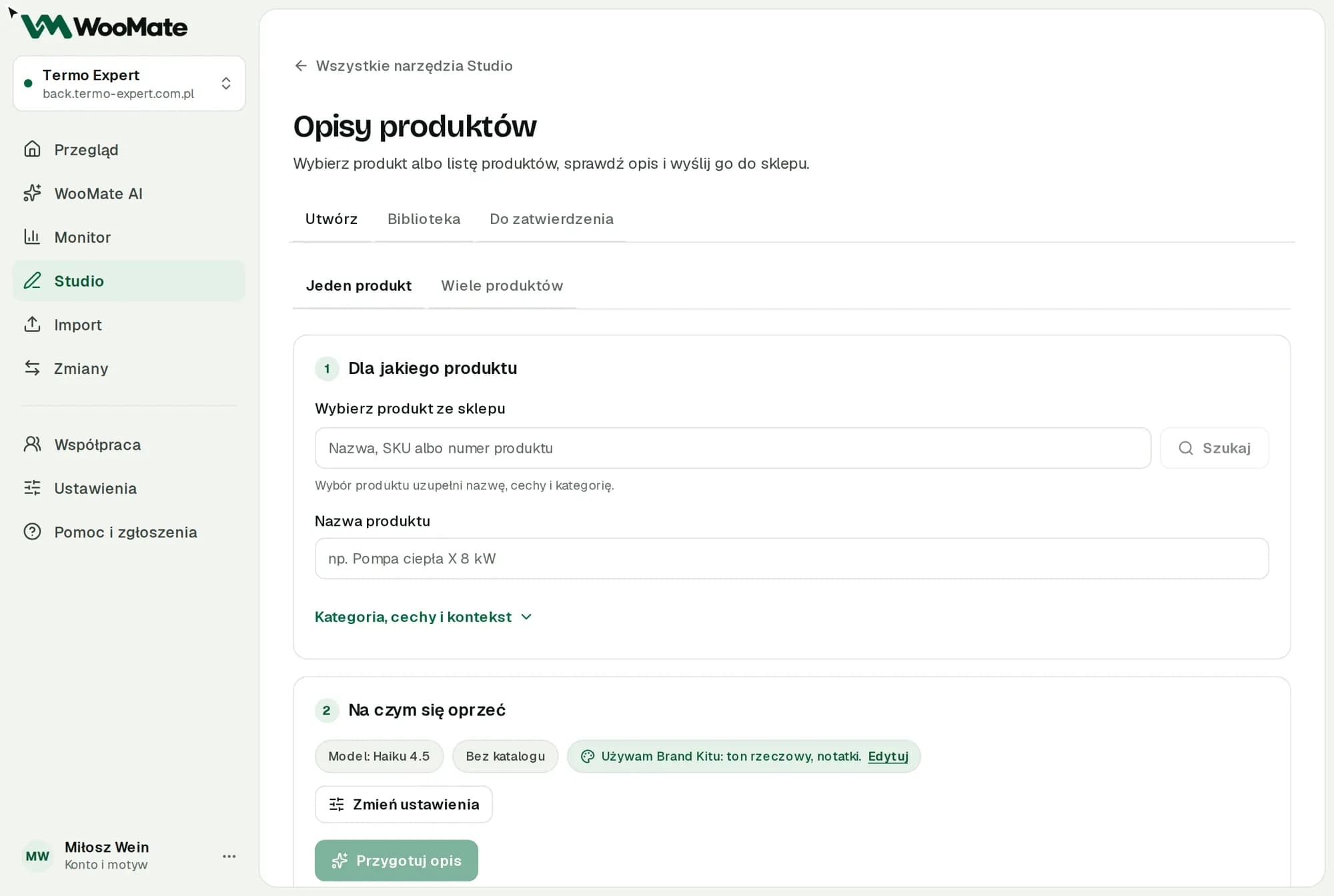
This tool writes a short and a long product description, and a Google description too if you want one.
What you need first
An AI key. You need a connected store to pick a product, save to the Library and send the description.
Steps
- Open Product descriptions and leave How many products set to One product.
- Pick a product from your store or fill in Product name.
- Expand Category, features and context and add the details.
- Check Also prepare a Google description if you need one.
- Click Prepare description.
- Review the result in the Preview or HTML view. Fix it with Edit or Improve with AI.
- Choose the product and click Show change in “…”.
- Approve the change.
Nothing changes in your store until you approve.
Limits
- The AI works from the details you give it. Check specs and claims before you save.
- Your edits are saved as a new version in the Library.
- You can pick a manufacturer catalog under Change settings. The AI then takes specs only from an exactly matching model. The matching rules are in Batch descriptions from a catalog.
Common problems
- Enter the product name or pick it from the store. The name field is required.
- The exact SKU/model wasn't found in the catalog. Make the name more specific or pick the right catalog.
- Connect a store to send the description. Without a store you can only copy the result.
Related articles
Can't find the answer? Write to hello@getwoomate.com or request free onboarding help.