
Overview and first tasks
What the Overview screen shows and where to start.
The Overview gathers what needs your attention and the results from the last 7 days for the selected store.
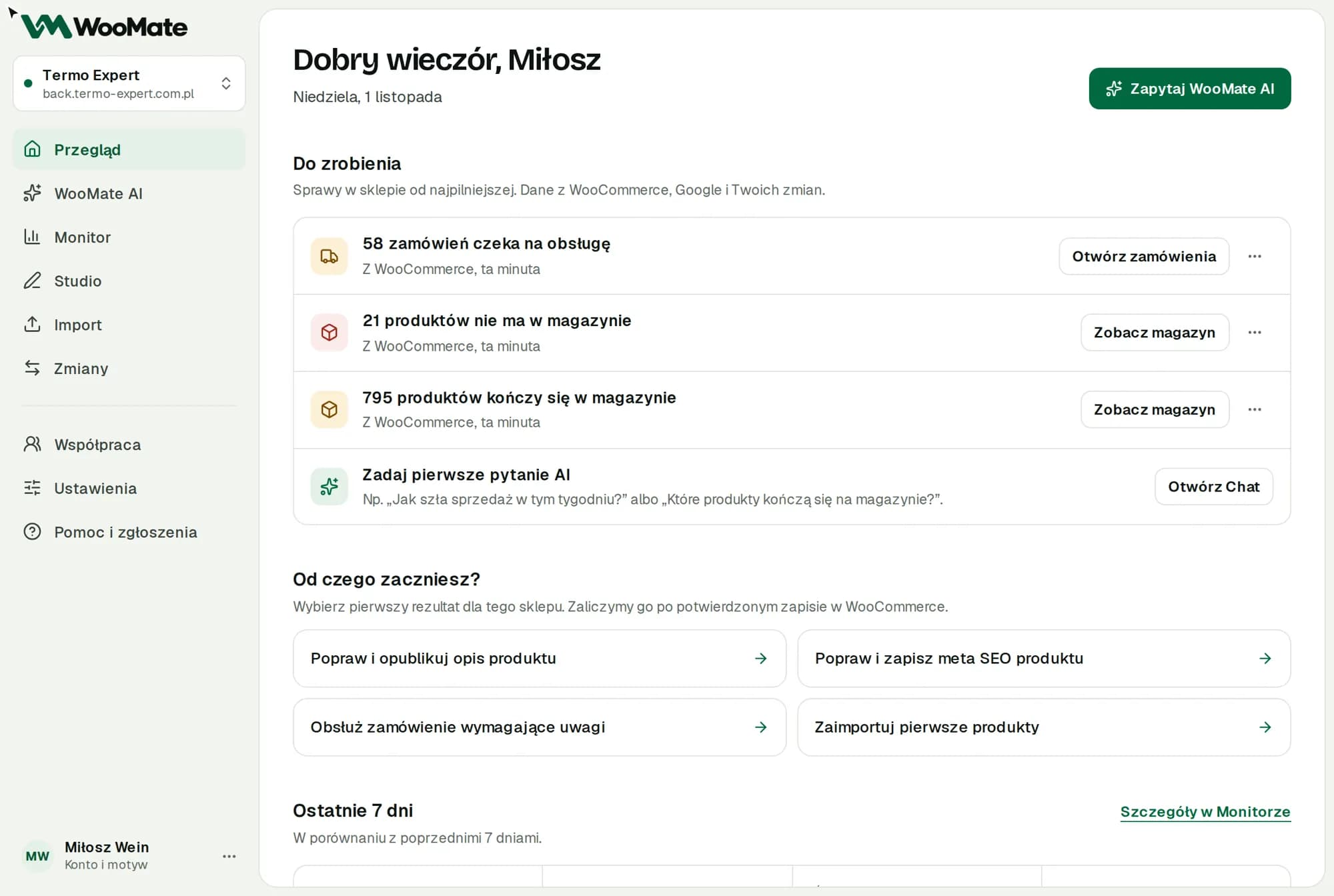
The screen needs a connected store. The store switcher in the top bar decides which store the data is for.
What you see on the screen
- Finish setup: missing steps, such as an AI key, Google or the Brand Kit.
- Where will you start?: pick your first goal. It counts as done once the save in WooCommerce is confirmed.
- To do: items, most urgent first.
- Last 7 days: Revenue, Orders, Average order and Purchase costs compared with the previous 7 days.
- Recent activity: changes, imports and descriptions.
Choose your first task
- Under Where will you start?, choose one goal:
- Improve and publish a product description
- Improve and save product SEO metadata
- Handle an order requiring attention
- Import your first products
- Click Continue.
- Complete the task and approve the save.
The To do list
The list shows, among other things, changes waiting for approval, saves that need checking, orders, stock shortages, products disapproved in Google Merchant, and connection problems.
Each item has a button for the right action. Under More actions you'll find Diagnose in WooMate AI, Postpone until tomorrow and Mark as done. You can restore closed items from Task history.
Limitations
- Sections with Google and Meta data need those accounts connected.
- When the store doesn't respond, the list shows the last saved state and tells you so.
Common problems
- Could not load data from the store. Refresh the page in a moment, then check the connection in the store settings.
- … sold products have no purchase cost. Click Add costs.
Related articles
Can't find the answer? Write to hello@getwoomate.com or request free onboarding help.