
Dry run
What the dry run shows and how to read the screen before saving.
Every import starts with a dry run. Your store doesn't change during it, and no categories are created.
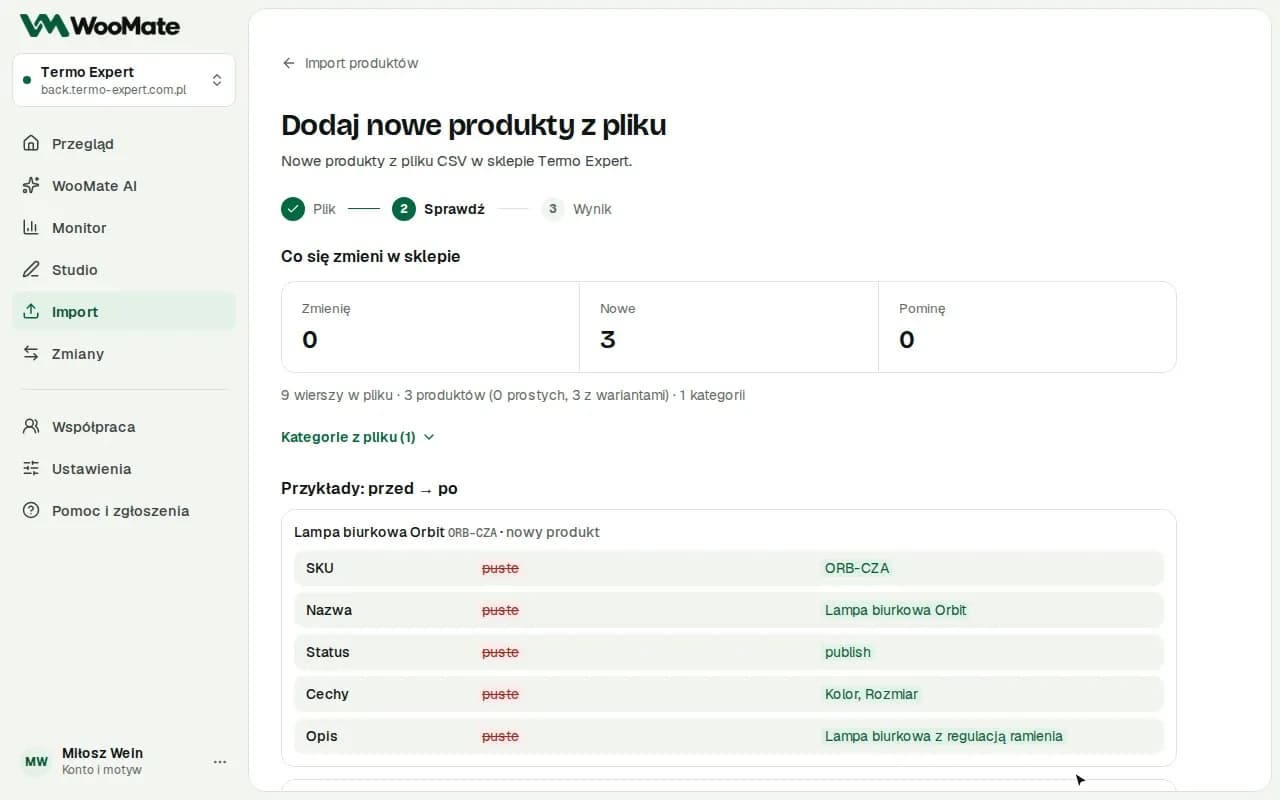
What you'll see
After you click Check what changes, the What changes in the store screen shows:
- Update, New, Unchanged and Skip: product counts. Unchanged products already have the values from the file in your store, so WooMate doesn't save them
- Not in file, when you turn on marking products missing from the file as out of stock
- a line with the number of rows, simple and variable products, and categories
- Examples: before → after, including variation prices and stock
- a list of items to skip, with the row number and the reason
Row numbers match the spreadsheet, where the header is row 1.
What to do about problems
- Click Download the problem list (CSV) to see the full list.
- Fix the file and upload it again with Change file or Back to the file.
- You can also choose Skip the invalid items and save the rest.
If you see This file cannot be saved yet, the problem affects the whole file. Fix it and try again.
Limits
- You can stop a dry run. The counts then cover only the part of the file that was checked.
- The dry run shows the state at the moment of the check.
- Saving repeats the checks and can report an error the dry run didn't have, for example when someone changed a product in the meantime.
Related articles
Can't find the answer? Write to hello@getwoomate.com or request free onboarding help.