
Traffic, Google and Merchant Center
What the Traffic and Google tab shows and how to fix disapproved products.
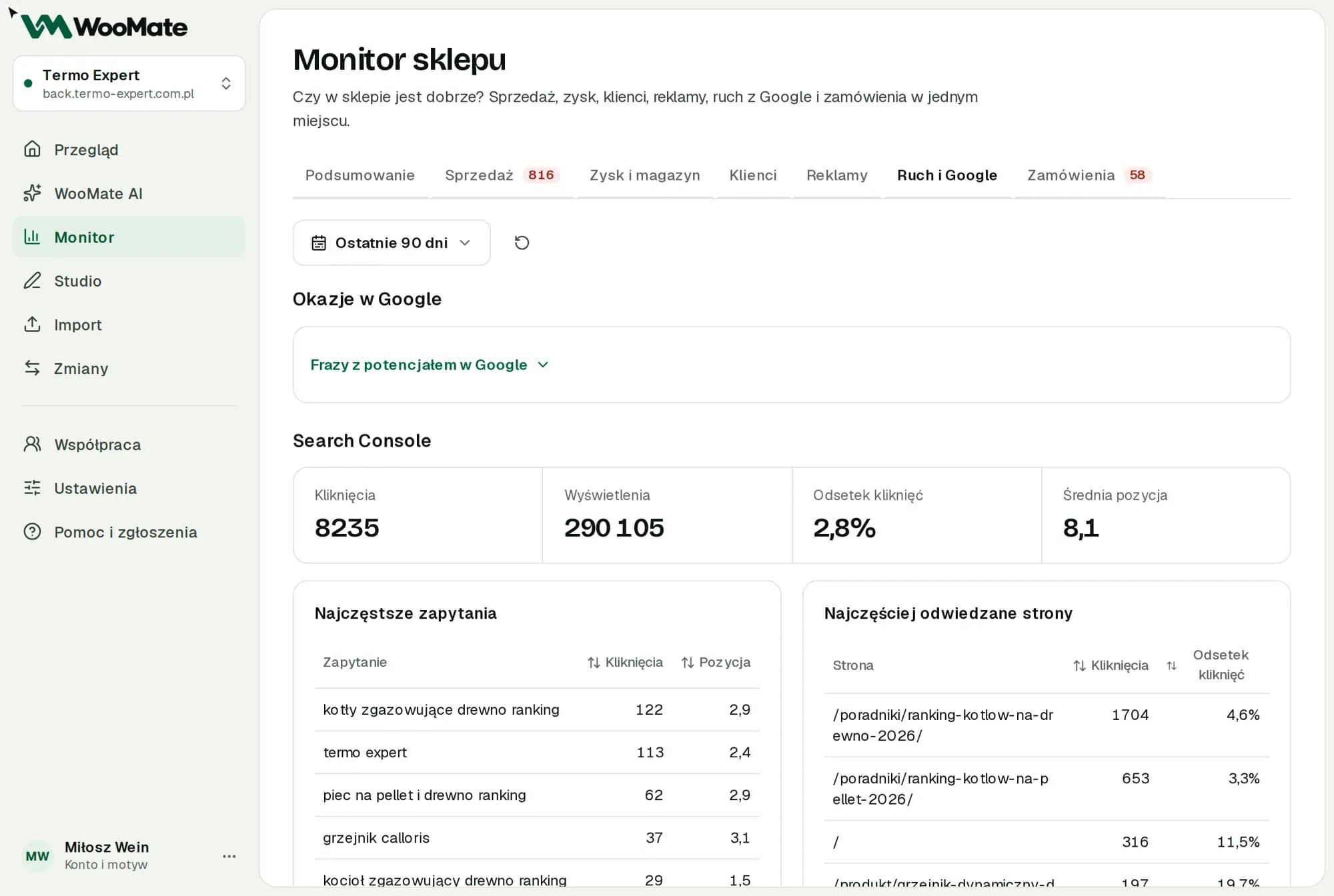
The Traffic and Google tab brings together Search Console, Analytics and Merchant Center.
What you need first
A connected Google account and the services selected in the store settings, under Connections.
Search Console
- Clicks, Impressions, Click-through rate, Average position
- High in Google, few clicks: queries in the top five with a click-through rate below 3%
- Top queries and Most visited pages
Analytics
- Purchase path: from visits to purchases
- Engagement, Devices, Regions
- Traffic sources
- Campaigns tagged with UTM
Merchant Center
The Products with issues in Google section is a queue of cases.
- Click Check products in Google. For larger accounts, continue with Check the next 100.
- Next to a product, click Fix.
- What's wrong step: read the issue, then click Go to the fix.
- Fix in the store step: confirm that your product feed pulls data from WooCommerce, choose the Field to fix and the New value, then click Prepare change preview.
- Approve the change.
- Check in Google step: click Check status in Google.
Case statuses: Needs fixing, Google is checking, Confirmed by Google.
Limitations
- A check reads the result. It doesn't force Google to fetch the feed again or re-review policies.
- If the feed comes from a spreadsheet or a separate tool, fix it at the source.
- GTIN, shipping and account policies are set in Merchant Center.
- WooMate fixes the title, description, prices and availability.
Related articles
Can't find the answer? Write to hello@getwoomate.com or request free onboarding help.