
How to use the WooMate AI chat
How to give the chat tasks, use the ready-made prompts and read its replies.
WooMate AI reads your store's data and prepares changes when you ask in plain words. You save them after approving.
What you need
- A connected store.
- An Anthropic or OpenAI key (Add AI keys).
WooMate AI is included in every plan and in the free trial (30 messages).
Your first conversation
- Click WooMate AI in the menu.
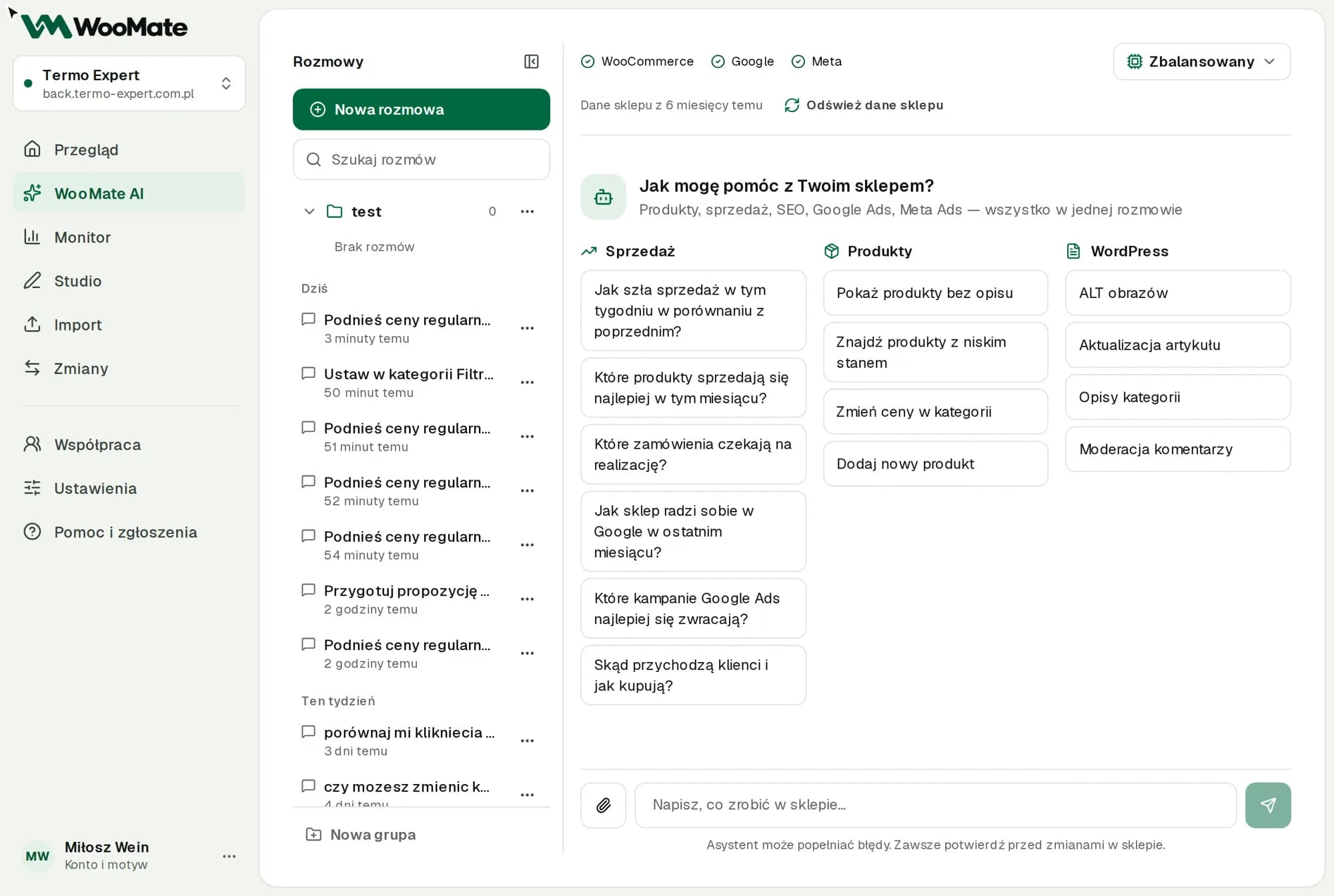
- Pick a ready-made task or type your request in the Tell me what to do in your store… field.
- Send the message.
While it works, you'll see its steps, such as Searching products. When the AI prepares a change, a card with approval buttons appears below the reply.
Ready-made tasks
- Sales: e.g. How were sales this week compared to last week?
- Products: e.g. Show products without a description, Change prices in a category, Add a new product
- WordPress: Image ALT, Update an article, Category descriptions, Comment moderation
Tasks that use Google data appear once you connect Google.
How to write requests
- Give the scope: a category, SKU or time period.
- Give the value: "lower by 10%", not "lower a bit".
- Say what to leave alone.
- Say so directly when you only want an analysis.
Example: "Lower regular prices in the Teas category by 10%. Don't change products that are on sale."
Data sources
The bar above the conversation shows the connected sources and when the store data was read. With recommendations, the AI should state the source, period and how complete the data is. To refresh the store data summary, click Refresh store data.
Double-check important numbers. The AI can make mistakes.
"•••" in a reply means a customer's contact details are hidden (email, phone, address, and last name except the initial). Learn more in Data and key security.
Limitations
- One reply is limited to 20 steps and 6 minutes. If it hits the limit, send another message.
- A very long conversation will exceed the model's limit. Start a new one then; you can organize older conversations in folders.
- A reply may be cut off at the length limit. Type "continue" when that happens.
- Typing "yes" doesn't save changes. Only the button on the card saves them.
Common problems
| Message | What to do |
|---|---|
| The model declined to answer | Rephrase the question or choose another model. |
| Several WooCommerce requests in a row failed | Check the store connection in settings. |
| Your plan doesn't include WooMate AI | Choose a plan. |
Related articles
Can't find the answer? Write to hello@getwoomate.com or request free onboarding help.